Showing posts with label 3D touch. Show all posts

Thursday, 14 January 2016

What's new in iOS 9.3


Recently, Apple offer their developer to try the new update of iOS. The iOS 9.3 will brings more features to improve user experience for it's users. Here are several features that worth to try :

1. Night Shift feature


With this feature, your device will alter it's light when it's late at night. Apple believe that according to some studies, exposure to bright blue light in the night make people harder to fall asleep. Your device will know what time of the day and provide softer, warmer and comfortable for eyes. Night shift can be scheduled for certain time. You can configure this in Settings app.


2. Notes protection with Touch ID


We often use notes app in order to write and save information in fast and simple way. However, sometimes we don't want other people to easily open our notes. Notes app is not suitable to save sensitive information, but at least an extra layer of security added by apple. Most people not save sensitive information, but use notes to write personal matters that they don't want other people to read. Configure this in Settings -> Notes -> Password Protection.


3. Improved News App


Apple has minor tweak for it's interface and visual look. The improvement actually placed in their news engine to provide more news recommendation based on your interest. Other improvement that you may find in the app is you can watch article video directly from the news feed without clicking it.


4. More Quick Actions with 3D touch

In this release, Apple added new quick actions when you use 3d touch feature in their stock apps, such as appstore, weather, settings and health app.


5. Do more with Live Photos


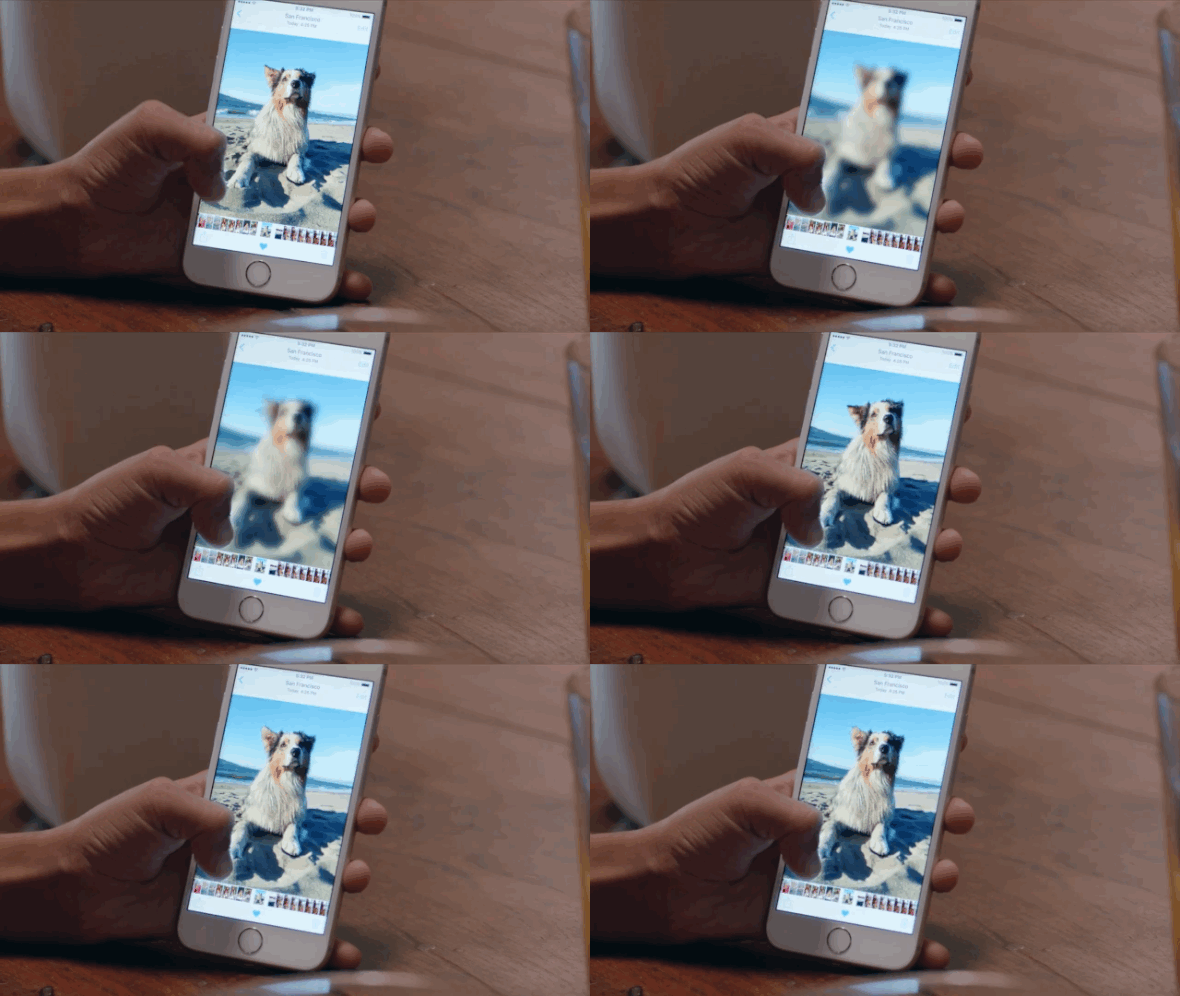
You may often use this feature in your new iPhone 6s. With iOS 9.3, Apple has added new function to their photos app. You can duplicate and save live photos as new live photos or still image.

6. CarPlay


New feature has been added to integrate CarPlay and Apple Music which allows you to play recommended tracks and playlist based on your history.

7. Other Features

  • Siri now has support for Finnish, Hebrew, and Malay.
  • If you have iOS 9.3 and watchOS 2.2 your iPhone will be able to pair with more than one Apple Watch. Each Apple Watch and iPhone must have 2.2 and 9.3 respectively.
  • App switcher has haptic feedback similar to Peek and Pop.
  • While using Apple Pay, there’s now a small icon that will open the associated app linked to the card or pass.

Thursday, 8 October 2015

5 Time saving tips for your iphone 6s & other iOS gadgets

With the new Apple iPhone 6s, new features being added to improve productivity. Here, we are going to share some tips that also applicable to other iOS devices : 

1. Fast reply to your notifications

Depend on the apps which have notification features, in your notification centre you can swipe down the notification message to see the apps option. Most apps have this kind of features. 

You save : 1 second


2. Use Siri to read latest message

Siri could be really useful if you want to know latest message in your iphone. Just say "Siri, read my me my text message" and it will read latest unread message from your iphone. 

You save : 2 seconds


3. Peek a website using 3d touch (for iPhone 6s)

If you receive message from your friends with certain url, you can use 3d touch to peek inside the url without switch or open safari.

You save : 0,5 second


4. Peek your emails with 3d touch (for iPhone 6s)

Usually, we opened our emails from our inbox to see what the message are and go back to our inbox to see other email. Now, in iPhone 6s, you can peek your email by using 3d touch and dismiss it directly after you see it. 

You save : 0,5 second / email


5. Take a photo to send it to your friends 

In iMessage, you can directly take a new photo or record new video and send it directly to your friends. To do this, within iMessage, long-press the camera icon to open it's menu. Swipe up to take picture or to the left to record a new video.

You save : 0,5 second


Wednesday, 30 September 2015

6 Free iOS apps which maximize 3D touch in Apple iPhone 6s

Since the arrival of iPhone 6s with 3D touch feature, many developers enhance their apps to use this feature and give their user base better user experience and use their iphone effectively.


One of most popular social app out there. With 3D touch, you can preview actual photos inside the app, such as in the profile page of the user, not only from the app icon. 


From the icon app, you can directly create new board. Inside the app, you can also use this feature. In first time use it inside the app, you'll feel little bit weird. When you want to pin or heart, you likely want to use 2 hands, one to activate the 3d touch menu and the other hand to choose option you want to take. 


One of the 3d touch feature that we found useful when we use this app is fast upload option directly from the icon app. This is one of time-saving activities to use this app using 3d touch. Other option that you may found useful is to see recent files added to the app. Inside the app, you can preview photos, list of files within folder using this feature.

4. WeChat


If you using this app, you'll get some useful and time-saving feature using 3d touch. From the app icon, you can pull up QR code or mute the app for one hour if you get distracted with this app (One of the option that we'll often use) 

5. Shazam 


I really like with the options offered in this app. From the app icon, you can directly "shazam now" to know the music that you hear when you're in a hurry. 


This app offer powerful options when you use 3d touch. You can directly shoot with several modes from the icon app. There are sunset, portrait and "blogger" mode. Give it a try !

Monday, 28 September 2015

3 Ways to launch selfie camera in iphone 6s

As new iPhone 6s launch with new iOS 9 and several new features, It give options to it's user to do so much more with their iphone 6s. In this post, We will show you how to access your selfie camera in various ways.

1. Using 3D Touch.

First, using new feature which come with iPhone 6s, the 3D Touch.

- Go to home screen

- Press firmly the camera app icon.

- It will pop a menu from 3D touch

- Choose "Take Selfie"


2. Using Siri 

To do this, Follow these steps : 

- Say "Hey Siri, Take a selfie"

- If you have security applied, unlock your iphone using Touch ID or passcode, depend on your security settings.

- Your camera app will automatically launch and you just need to tap camera icon in the top right of your app in order to switch into your front camera.


3. Open your camera app manually.

The most common way to do selfie the old fashion way.

- Unlock your iphone using Touch ID or passcode (If you apply security setting before)

- Open your camera app in your home screen

- After your camera app launched, switch your camera by tapping the camera icon in the top right.


Sunday, 27 September 2015

How to delete apps in iPhone 6s

This guide maybe sound a little bit ridiculous. But, as you know, in iPhone 6s there is new feature called 3D touch. With 3D touch, your iphone will detect pressure when you touch the screen. To move or remove apps in your iphone will be the same as the previous iphone, but you'll need more careful or you will accidentally trigger 3d touch in your iphone. 


1. Go to your app list or home screen.

2. Touch the app you want to move or delete lightly

3. Wait a little longer to allow it enter jiggle mode

4. Move it or remove the apps by pressing x in the top left of the app icon.


In some cases, your screen become blur and trigger 3d touch. It means that you press the app too hard. Try it again and touch lightly. 

Saturday, 26 September 2015

How to activate or deactivate 3D touch in iphone 6s


By default, 3D touch is on iphone 6s, but there also an option to deactivate it. It may be useful for people who have problem with their motor skill. To access 3D touch, use following steps :

1. Go to Settings app

2. Choose General

3. Choose accessibility

4. Choose 3D Touch

5. Slide to the left to deactivate it.