Showing posts with label siri. Show all posts

Thursday, 8 October 2015

5 Time saving tips for your iphone 6s & other iOS gadgets

With the new Apple iPhone 6s, new features being added to improve productivity. Here, we are going to share some tips that also applicable to other iOS devices : 

1. Fast reply to your notifications

Depend on the apps which have notification features, in your notification centre you can swipe down the notification message to see the apps option. Most apps have this kind of features. 

You save : 1 second


2. Use Siri to read latest message

Siri could be really useful if you want to know latest message in your iphone. Just say "Siri, read my me my text message" and it will read latest unread message from your iphone. 

You save : 2 seconds


3. Peek a website using 3d touch (for iPhone 6s)

If you receive message from your friends with certain url, you can use 3d touch to peek inside the url without switch or open safari.

You save : 0,5 second


4. Peek your emails with 3d touch (for iPhone 6s)

Usually, we opened our emails from our inbox to see what the message are and go back to our inbox to see other email. Now, in iPhone 6s, you can peek your email by using 3d touch and dismiss it directly after you see it. 

You save : 0,5 second / email


5. Take a photo to send it to your friends 

In iMessage, you can directly take a new photo or record new video and send it directly to your friends. To do this, within iMessage, long-press the camera icon to open it's menu. Swipe up to take picture or to the left to record a new video.

You save : 0,5 second


Tuesday, 29 September 2015

5 Things you don't know that Siri can do !

In iOS 9, Siri comes with a lot of improvement and better performance. There are several new things that you can try with Siri. Here they are : 

1. Adjust your screen brightness.


Just say "Change screen brightness" and you'll get a slider to adjust your brightness. Not only brightness setting, you can also this with fonts or other things. Give it a try !

2. Find what people say on twitter.


One of many things that you can do with Siri is to know what people say on tweeter. Say "What [name of twitter user] saying?" and Siri will display their tweets in your screen.


3. Selfie with camera 


In previous post, I've shown to take selfie with your front camera. Many people don't know that you can tell Siri to take selfie. Just say "Siri, take a selfie" and your camera app will open, ready to take your photo selfie. 

4. Turn on or off your available network


With Siri, you can turn on or off your wifi, bluetooth , airplane mode and other network options. For example, you can say "Siri, turn wifi on"

5. Read your message


Did you know that Siri can read messages for you ? To do this, just say "Read latest message" and siri will check latest messages from your message app.


Monday, 28 September 2015

3 Ways to launch selfie camera in iphone 6s

As new iPhone 6s launch with new iOS 9 and several new features, It give options to it's user to do so much more with their iphone 6s. In this post, We will show you how to access your selfie camera in various ways.

1. Using 3D Touch.

First, using new feature which come with iPhone 6s, the 3D Touch.

- Go to home screen

- Press firmly the camera app icon.

- It will pop a menu from 3D touch

- Choose "Take Selfie"


2. Using Siri 

To do this, Follow these steps : 

- Say "Hey Siri, Take a selfie"

- If you have security applied, unlock your iphone using Touch ID or passcode, depend on your security settings.

- Your camera app will automatically launch and you just need to tap camera icon in the top right of your app in order to switch into your front camera.


3. Open your camera app manually.

The most common way to do selfie the old fashion way.

- Unlock your iphone using Touch ID or passcode (If you apply security setting before)

- Open your camera app in your home screen

- After your camera app launched, switch your camera by tapping the camera icon in the top right.


Wednesday, 23 September 2015

How to speed up your old iphone when using iOS 9

A lot of iPhone users upgrader their device to use iOS 9. The problem is many of old iphone seems to be exhausted when use iOS 9. Here are several tips to improve your iphone speed in iOS 9 (I recommend it for iPhone 5 and below to apply this) :

1. Reduce Motion


One of the improvement in iOS 9 is a lot of new animation effects applied within the OS. There are a lot of stunning dynamic effects available when you use iOS 9. Even it looks beautiful, it also use a lot of your iphone resources. You may gain more speed by activating "Reduce Motion" feature. Go to Settings -> General -> Accessibility -> Reduce Motion.

2. Siri


The second tips which you can apply is to deactivate "Siri suggestions" in your spotlight. In iOS 9, Siri also got a lot of improvements, but this also effect in your iphone resources. For that reason, we suggest you to do this tips. Go to Settings -> General -> Spotlight Search and then set the feature Off.


3. Transparency 


Transparency in iOS 9 is also one of the feature that eat a lot of resources. Turn this Off by going to Settings -> General -> Accessibility -> Increase Contrast.

4. Background App refresh


This feature already available in previous iOS 8 version. As you know, this feature work in background to refresh your data in order to get frequent update for your apps. Turn this off may save more resources for your phone. Go to Setttings -> General -> Background App Refresh. 

Saturday, 19 September 2015

3 Best accessories to maximize your iPhone 6 potential

1. OlloClip


This unique accessory lets you shoot in wide angle and macro shots using your iphone. It comes with three different color clips and a landyard to help you keep the tiny attachment safe.


2. Incipio's Wireless Smart Lamp Adapter


One of many unique iphone accessories out there. It lets you control all lights through out your home with your iphone. This adapter enable you toggle lights in your house with Incipio Direct app. Maybe the most interesting part is you can do voice command with Siri.

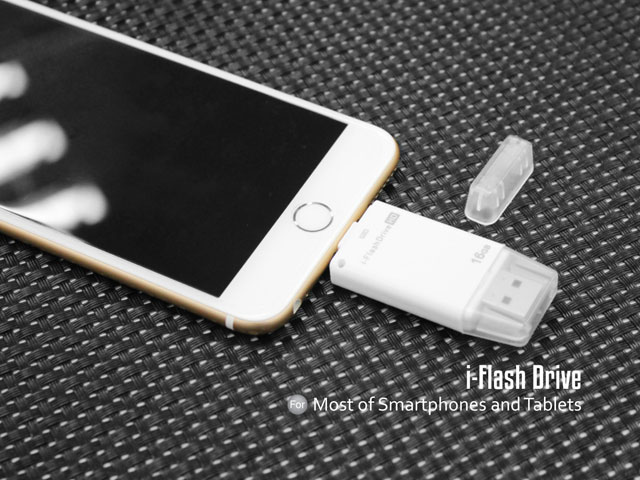
3. i-Flash Drive EVO


This accessory is help you to easily share big files such as video, music files, HD photos. It's a dual sided drive with lightning dock in one side and USB in the other one. With this special drive, you also can easily exchange files between your iPhone, iPad or iPods with your Mac

Monday, 7 September 2015

5 iPhone hacks you may not know !

1. Check tweet without opening twitter app
Do you know you can check your favourite user tweet without opening twitter app? You can ask Siri by saying "Whats [twitter handle] saying " for example "What's paul john saying ?"


2. Alternative undo typing
You can undo your typing by shaking your iphone side to side. Try this out!

Image result for undo typing iphone

3. Dark theme for your iphone
You can change your iphone menu color by changing it. To do this, go to Settings > General > Accessibility and select Turn on invert colors


4. Type numbers without changing your keyboard to numerical view.
This can be done by tap and hold "123" button and slide to number you want to type.


5. Show timestamp in Messages 
Just Slide left in your conversation screen to see the timestamp. The timestamp will show in the right of your screen

Saturday, 5 September 2015

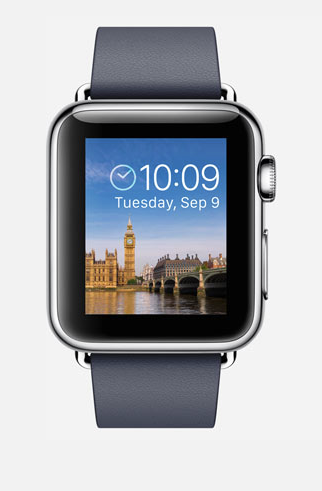
5 Useful things your Apple Watch can do


1. Locate your iphone
If your iphone and your watch connected via bluetooth or in the same wifi network. You can use your apple watch to know your iphone location. Swipe up your apple watch screen to view your Glances. Switch over to the leftmost of the glances and tap iphone icon. This action will ping your iphone and make your iphone sound a ping noise, even your iphone still in silent mode.


2. Show your last used apps
There are 2 ways to do this. First, you can manually bring your last apps to your watch screen by double-press your digital crown. Second, you can set your watch to bring up your last apps when you raise your wrist. In order to set this up, Go to Settings, Choose General<, and Select Activate on Wrist Raise. Then, Activate Last Used App


3. Capture screenshots in your watch
To capture your screen, just Press and hold the button in the lower side of your watch and click digital crown to get your screenshot.


4. Share your location with your friends 
In your watch, you can notify your friend about your location. This feature is really useful when you waiting your friend in some place and want to tell your friend that you're waiting in there. Send your location with your watch by force touch your conversation screen and choose Send Location button.

5. Activate Siri
Siri is not only available from your iphone. You can now activate Siri through your Apple watch. To do this, press and hold digital crown until Siri activated. Alternatively, you can raise your wrist and say "Hey Siri" and give the command you want.