Showing posts with label iphone tips. Show all posts

Monday, 18 January 2016

9 Tips and Tricks to reduce data usage on your iPhone


If you use quota based plan for your iPhone, You'll find that this tutorial really useful to save your quota. Here are 9 Tips to reduce data usage on your iPhone :


1. Disable automatic downloads using cellular data

In default, apple turn this on in your iPhone setting. This setting is good to keep your apps updated when there is new version available in the app store, but it also drained your data quota really fast. Alternatively, you can download updates when you are connected to wifi. In order to set this, follow these steps :


- Go to Settings ->  iTunes & App Stores.


- You'll find "Use Cellular Data" option. Turn this option off.


2. Disable iCloud cellular data usage

If you utilize iCloud to move and synchronize your data between your devices, you may drain your quota really fast and pay higher fees in the end. The other way to move your data is to use wifi to transfer your documents and other files. To change this setting, do the following steps :

- Go to Settings -> iCloud.


- Tap on iCloud drive


- Scroll to the bottom and find "Use Cellular Data" option and turn this off.


3. Disable Wi-fi Assist

This feature is really helpful when you in area with low wifi signal. But, sometimes, you may not realize that you already bunch of your data quota. To prevent this, you can disable it. Follow these steps : 

- Go to Settings -> Cellular.


- Scroll to the bottom and turn off "Wi-fi Assist" option.


4. Disable Background App Refresh

Your app can update when you are not using them and consume your data plan. You can disable this feature by following these steps : 

- Go to Settings -> General and find Background App Refresh.


- Disable it and all the app list will have it's toggle disappear.


5. Disable Data Hungry Apps

This tip is about how you carefully choose which app that allowed to consume your data plan. You can also monitor which apps that consume data more than others. Here is how to do it : 

- Go to Cellular in your Settings app (follow tip #3)
- Scroll down and choose which app allowed to use your cellular data.


6. Disable high-quality music streaming on cellular network

In the new iOS version, Apple provide an option to stream high quality music. Of course, high quality music will drain your quota faster than the regular one. You may want to turn this feature off when you use cellular data. 

- Open your Settings app
- Tap on Music.
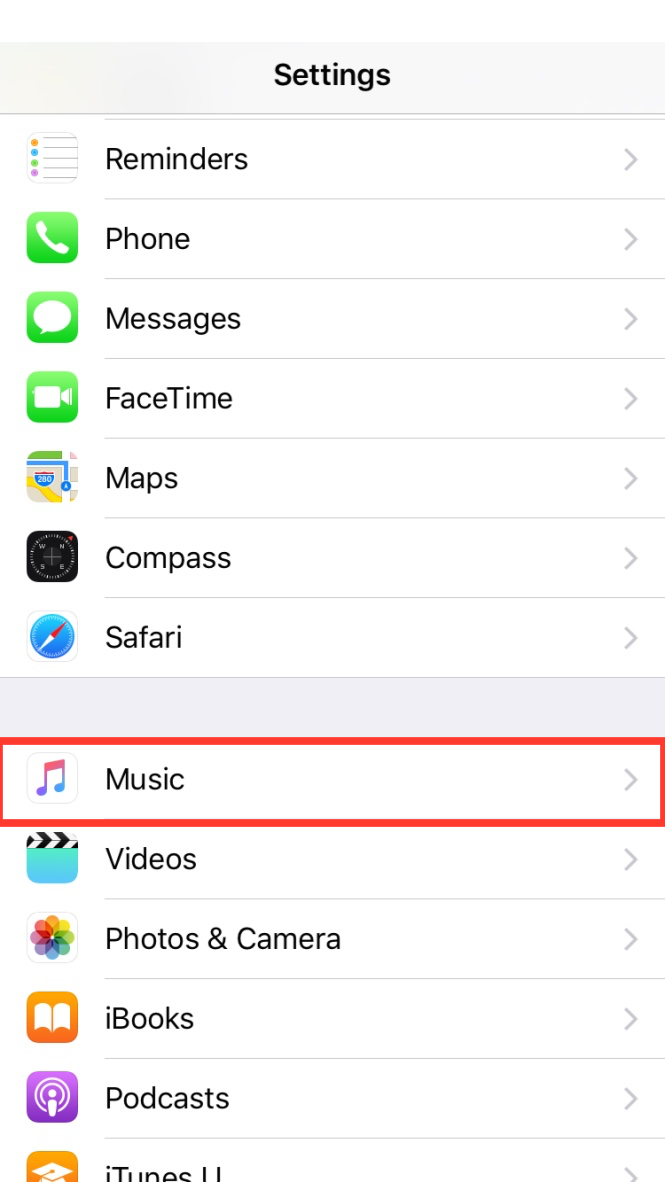


- Turn off "High Quality on Cellular" option


7. Disable autoplay video in Facebook app when using cellular network 

Autoplay feature in social media app like facebook could drain your data quota really fast. You can disable it with the following steps :

- Run facebook app from your iPhone
- Tap on More tab in the bottom of the app
- Go to Settings option
- Choose Account Settings from the popup menu
- Tap Videos and Photos option
- Choose Autoplay option
- Choose On Wi-fi Connections Only or Never Autoplay


8. Disable autoplay video in Twitter app when using cellular network 

Same with facebook app, Twitter also has autoplay feature. Disable this feature to save more on your data plan.

- Run Twitter app from your iPhone
- Tap on Me tab in the bottom of the app
- Tap on the gear icon next to your profile pic
- Choose Settings when the popup appear
- Choose Video autoplay option
- Select Use Wi-fi only or Never play videos automatically option


9. Disable Cellular Data completely.

This is probably the last option that you gonna use. When your data plan is already at the limit, you can disable your cellular network completely. Here are the steps :

- Go to Settings -> Cellular


- Turn Cellular Data Off


Monday, 19 October 2015

How to adjust music playback setting in your iPhone


In your iPhone, there is a way to set your playback setting according to the setting you want. Basically, it configure EQ setting which adjust the sound frequency. Apple make it more easier by providing several pre-configured settings that are ready for you to use. You can find these in your settings app.

1. Go to Settings
2. Choose Music menu
3. Scroll down to playback option
4. Switch EQ to On by tapping it
5. It will provide you with many pre-configured settings :


Choose the playback setting that you want.

Thursday, 10 September 2015

4 Ways to improve your iphone speed


1. Reboot / Restart
One of the most effective way to improve your iphone speed is to reboot your iphone once in a while. Do this when you have time or when you not doing your activity with your iphone. 

2. Clear Cache 
In iOS, Safari is one of the most effective app that apple ever created for their iphone product. It also effective in cleaning unused data inside your iphone. However, Clean this cache data manually can also improve your iphone speed. Here is how to do it : 

- Open Settings app
- Tap on Safari
- Scroll down until you find Advanced option
- Tap on Website data and choose Remove all website data

3. Delete apps that you don't use anymore
Other thing which you can do to speed up your iphone is delete apps that you not use anymore. This can free more space from your iphone. To do this just tap and hold the apps you want to delete. Tap cross button to delete the apps

4. Turn off unused feature
Turn off some feature can dramatically improve your iphone. However, you can choose which feature from apps that you want to disabled. This is often come from apps through Background App Refresh. To turn this off, follow the steps below : 

- Open Settings app
- Tap background app refresh
- choose which app you want to disable.

Friday, 4 September 2015

5 Hidden iPhone 6 and 6s tricks

1. Reachability feature

Reachability feature help you to reach top of their iphone screen with their thumb while holding your iphone single-handedly. Just double touch your home button to make your screen slide half down near your thumb.


2. Smooth Video Recording

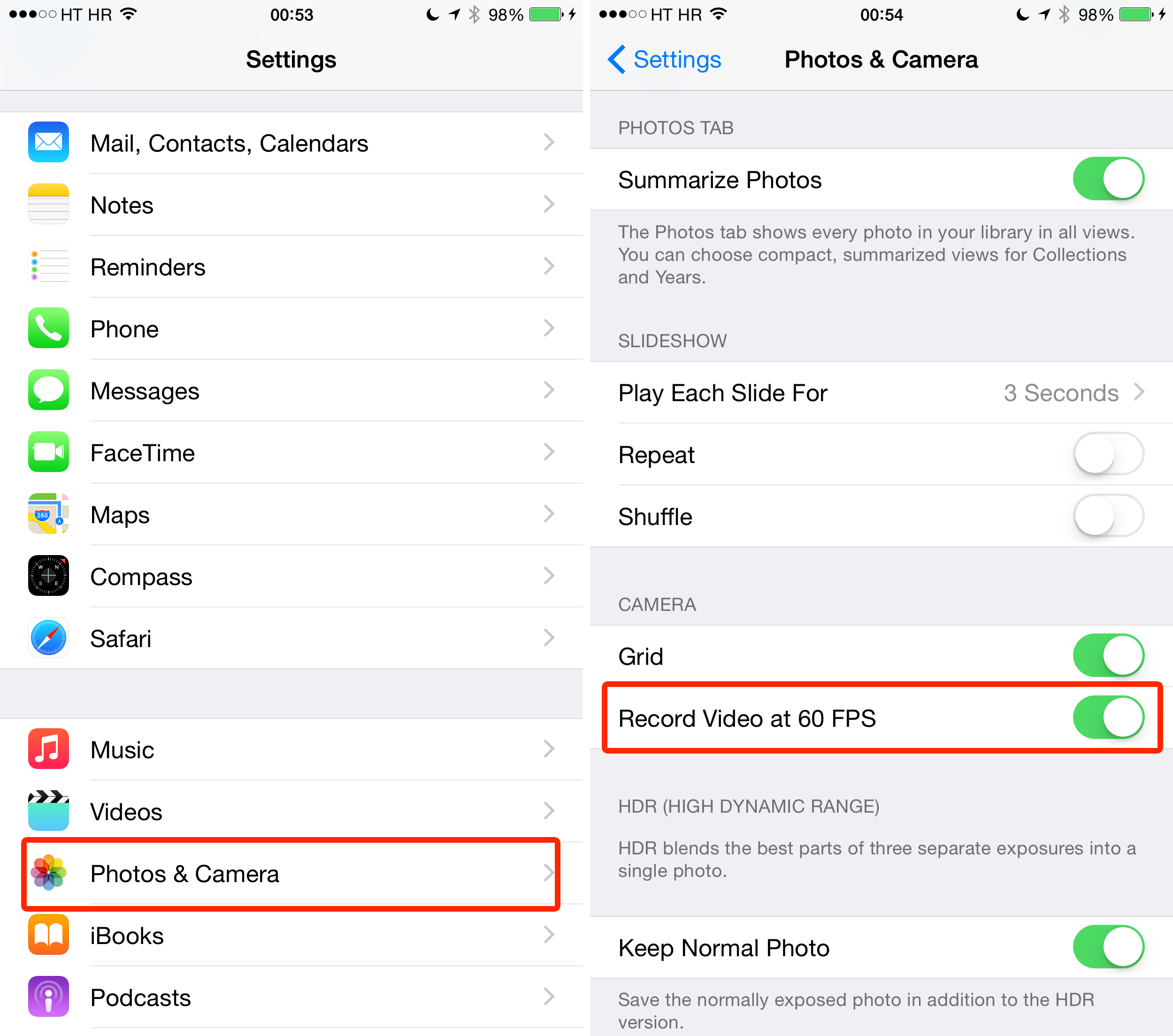
With your iPhone 6s and 6, you can record smoother video by enabling 60 fps (frame per second) capability. To do this, just go to Settings - Photos & Camera - Record video at 60 fps.


3. How to record slow motion video

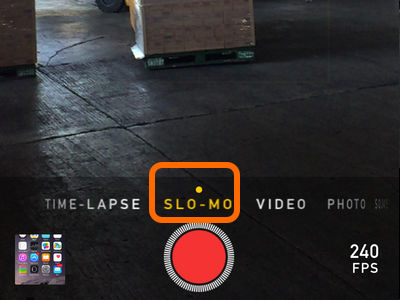
Start with iPhone 6, you can now capture slow motion video using your iphone. To Enable this, open your camera app and choose SLO-MO from horizontal sliding menu at the bottom of your screen.


4. Capture photo using volume keys

You can capture photos using volume keys. Just open your camera app and press the volume key to snap a photo. Great for candid photo !


5. How to define a word 

When you using safari to read an article or reading email using mail apps, you can look for word definition. In order to do this, select the word by pressing and hold the word, an option will appear, choose define to search for it's meaning in dictionary.


Saturday, 29 August 2015

7 Tips how to save your iPhone battery


In every new iOS update, there will be new features and interesting graphics given to the user. In effect of this, iphone or ipad battery drained faster than before. There are several tips that you can applied to your iphone to save your battery :

1. Check for battery draining applications
The step is easy, just go to Settings > General > Usage > Battery Usage. In there, you can see which applications drain your battery by percentage. When you find some particular apps that have high percentage, try to check whether your application often do background process, or have more notifications than the other. 

2. Be aware with the location service feature in your applications
You can also check this service in your ios device setting. Go to Settings > Privacy > Location Services. Find any applications that use this feature and choose whether you want to allow the application use location service or not. 

3. Manage notifications and widget
Manage application notification setting. You can do this by adjust your app notification in Settings > Notifications and choose the application that you want to manage. 


4. Turn off auto downloads
Manage your auto downloads setting in Settings > iTunes & App Store. We recommend you turn off the Apps and Updates options because you can check the update manually when needed or sync with other apple device later. This will help you save your battery.


5. Turn off handoff feature
Basically, this feature let you work simultanously between iOS device (iOS 8 and above) and OS X Yosemite in mac device. If you don't do this often, just turn off this feature. To do this, Go to Settings > General > Handoff & Suggested Apps

6. Manage your cellular data & wifi connection
If there is available wifi in your area, Use your wifi instead your Cellular Data. When you do this, don't forget to turn off your Cellular Data. You can manage it in Settings > Cellular > Cellular Data > Off. Other network activity that also drain your battery is Personal Hotspot. So, make sure you turn off this feature off if you not use it.

7. Manage Screen Brightness
Screen brightness is one of the factor of battery efficiency. In default, the brightness setting will be set into Auto-Brightness. This is good to make your device automatically adjust your screen to make sure you get clear visibility, but sometimes can get your battery drain faster in a certain use. There is a tip to help you save your battery. If you often stay in an area with sufficient light, you can manage your screen brightness manually, Don't get to low or to bright, make sure the setting give you enough visibility for you to use your ios device. To adjust your screen brightness, Go to Settings > Display & Brightness