Showing posts with label ipod. Show all posts

Friday, 6 November 2015

How to wipe all your data from your iPhone


Sometimes, you may want to reset your iPhone, iPod or iPad to the condition when you buy them in the first place, whether you want to sell it or maybe give it away. All you want to do is wipe your iPhone to erase all the data, including your personal data and make sure it clean before you took your iPhone away.

The first thing to do before you clean your iphone is to backup all your data in your iPhone. Make sure you have the latest backup of your data from your iPhone before you do a wipe. You can backup your data to the iCloud or to your mac / PC using iTunes. Here are the steps to backup your iphone : 

Backup your iphone to iCloud

1. Connect your iPhone to your wifi and to be safe, plug your charger when you doing your backup.
2. Go to Settings
3. Choose iCloud.
4. Select Backup and tap on Back Up Now.


Backup your iPhone using iTunes to your Mac / PC

1. Connect your iPhone to your Mac / PC
2. Launch iTunes app from it.
3. Inside iTunes, click iPhone icon (it may take a while in PC)
4. Click Back Up Now.
5. You will be asked to backup your apps if you want to.


After you backup your iPhone / other Apple devices. It's time to delete all your data in your gadget. Here is how to wipe up your iPhone : 

1. Go to Settings in your iPhone
2. Choose General.
3. Select Reset.
4. Choose Erase All Content and Settings to wipe your data.


Thursday, 24 September 2015

How to record your iPhone, iPad or iPod screen in your Mac OSX


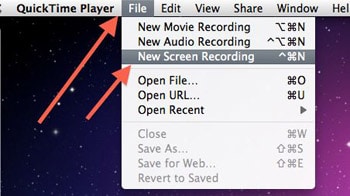
If you are a developer or power user, you may want to capture your iOS screen. Sometimes you want to upload a preview for your apps / other media in your Apple gadget. Actually, there is a simple way to do this within your Mac.

1. Connect your iphone to your mac using lightning cable.

2. Open QuickTime in your mac.

3. In QuickTime, Click File, New Recording to start record your iOS screen


Monday, 21 September 2015

Step by step guide to backup your iphone using alternative tool


Note : This tutorial works on iPhone 6S Plus,iPhone 6S,iPhone 6 Plus,iPhone 6,iPhone 5SiPhone 5CiPhone 5,iPhone 4SiPhone 4iPhone 3GS.

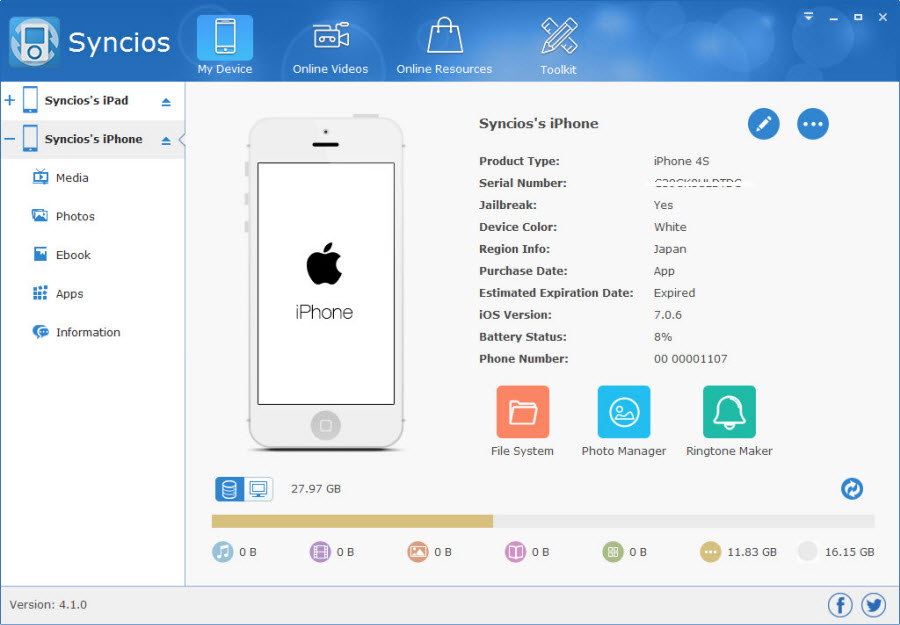
Many Apple users look for alternative to backup their device without using iTunes, especially windows users that often use drag an drop tool when doing any file transfer task. Other alternative to backup your iphone / ipad / ipod is using a software called Syncios. This is free to download, but they also offer pro version which offer more features. Even it's an alternative tool, it still need iTunes to operate this tool. Actually, Syncios provide more familiar UI for windows user that often use windows explorer to transfer their files. 

1. Download and Install Syncios

2. Connect your iphone / ipad / ipod to your PC and launch syncios. The software will automatically recognized it.

3. Click on My device. There will be 4 tabs : Media, Photos, Apps, Information.


4. Choose which one you want to backup, for example, you want to manage your photos. Click on Photos menu in the left side.

5. Select all photos you want to backup and Click Export Photo.


6. Then, browse where you want to place your backup.


7. Click Export to backup your photos. 

Thursday, 17 September 2015

How to migrate from Android to iOS easily


Recently, Apple released an android app to help android user migrate to iOS. It's called Move to iOS. With this tool, you can migrate your contacts, calendar, bookmarks, email accounts, messages, photos to iPhone, iPad or iPod Touch. This app can be installed to Android 4.0 and above.


What interesting about this tool is that you don't need backup your android phone to your cloud storage, because the tool will synchronize it through wifi between your android and iPhone / iPad / iPod touch.


When setting your new iOS device, user can choose Move data from android option in Apps & data setting. After you've done this, open Move to iOS app in your android and wait for 10 codes that will appear in your iPhone screen. Enter that codes to your android in order to authenticate both devices. Next you can choose what data you want to migrate. After the migration data, double check it and you are good to go !