Showing posts with label itunes. Show all posts

Saturday, 24 October 2015

App of the week : Dr Panda's Mailman


This one is suitable for your kids. Fun and great gameplay. So, What is all about ? In this app, your kids will become a panda deliver to their furry friends with many adventure options available. Here are some breakdown what you get in this game :


  • 4 big areas to discover—Mountain, Village, Forest and Fields
  • Over 10 animals, all with unique behaviors, habits and schedules!
  • Tons of interactive events- push boxes into a roaring river, make ducks fly away as you drive towards them, do tricks over ramps and more!
  • Paint your own postcards and make your own packages!
  • No rules, points or timers! Explore however you'd like, go off the beaten path and explore!
  • A huge world with no load times!
  • No in-app purchases
  • No third party ads

You can download this game in here for free

Tuesday, 20 October 2015

How to downgrade your iPhone from iOS 9 to iOS 8.4.1


If you, whatever the reason, disappointed with iOS 9, you still can downgrade your iPhone to the previous iOS version. In this tutorial, We will show you how to downgrade to iOS 8.4.1.

1. Download ipsw iOS 8.4.1 from here .

2. Deactivate "Find My iPhone" feature in your iPhone. You can do this by going to Settings > iCloud > Find My iPhone

3. Turn off your iphone

4. Run iTunes from your computer

5. Connect your iPhone to your computer through USB cable and then Press home and power button together for 10 seconds. Release the power button but hold the home button

6. iTunes will notify you that you are in the recovery mode. If you've seen this, you can release the home button.


7. Click the restore button in your iTunes and also press the shift button (PC) or Option (Mac)

8. Choose the ipsw file that you download before and the downgrade process will start.

9. Wait until the downgrade process done. 

Monday, 21 September 2015

Step by step guide to backup your iphone using alternative tool


Note : This tutorial works on iPhone 6S Plus,iPhone 6S,iPhone 6 Plus,iPhone 6,iPhone 5SiPhone 5CiPhone 5,iPhone 4SiPhone 4iPhone 3GS.

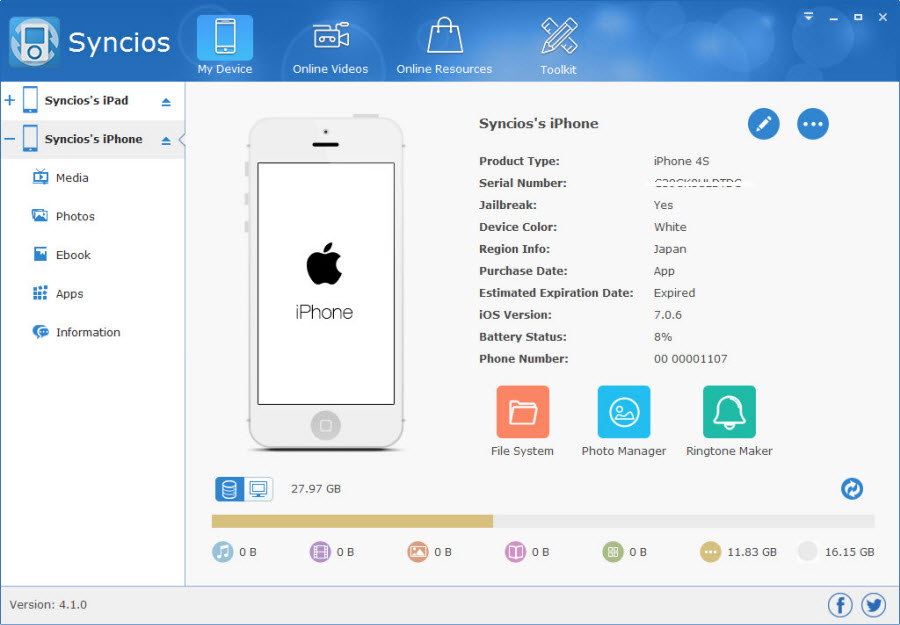
Many Apple users look for alternative to backup their device without using iTunes, especially windows users that often use drag an drop tool when doing any file transfer task. Other alternative to backup your iphone / ipad / ipod is using a software called Syncios. This is free to download, but they also offer pro version which offer more features. Even it's an alternative tool, it still need iTunes to operate this tool. Actually, Syncios provide more familiar UI for windows user that often use windows explorer to transfer their files. 

1. Download and Install Syncios

2. Connect your iphone / ipad / ipod to your PC and launch syncios. The software will automatically recognized it.

3. Click on My device. There will be 4 tabs : Media, Photos, Apps, Information.


4. Choose which one you want to backup, for example, you want to manage your photos. Click on Photos menu in the left side.

5. Select all photos you want to backup and Click Export Photo.


6. Then, browse where you want to place your backup.


7. Click Export to backup your photos. 

Friday, 18 September 2015

How to upgrade your iPhone / iPad / iPod to iOS 9


iOS 9 is out. If you want to upgrade your device to this new iOS from Apple, follow our step by step Guide :

For OTA Update


1. First, make sure your device is compatible. Here is the full list of supported Apple device

iPhone: iPhone 6S Plus, iPhone 6S, iPhone 6 Plus, iPhone 6, iPhone 5S, iPhone 5C, iPhone 5, iPhone 4S.

iPad: iPad Pro, iPad Air 2, iPad Air 1, iPad Mini 4, iPad Mini 3, iPad Mini, iPad 3, iPad 2

iPod Touch: iPod Touch 6, iPod Touch 5.


2. Backup your device to iCloud your mac or iCloud.

3. Go to Settings -> General -> Software Update and tap "Download and Install"


4. Wait until the installation finished.


For Update with iTunes 

1. First, make sure your device is compatible. Here is the full list of supported Apple device

iPhone: iPhone 6S Plus, iPhone 6S, iPhone 6 Plus, iPhone 6, iPhone 5S, iPhone 5C, iPhone 5, iPhone 4S.

iPad: iPad Pro, iPad Air 2, iPad Air 1, iPad Mini 4, iPad Mini 3, iPad Mini, iPad 3, iPad 2

iPod Touch: iPod Touch 6, iPod Touch 5.

2. Update your iTunes to the latest version. The minimum version of your iTunes must be 12.3.

3. Next, connect your device to iTunes. there will be update notification.

4. Click Download and Update


5. Wait until the update finished. 

Saturday, 12 September 2015

How to check your iphone imei


There are several ways to check your iPhone IMEI. The following tips could be useful for people who want to buy an iphone outside the official store or resellers. 

Here are several ways to check IMEI in your iphone : 

1. Using Itunes
You can use Itunes to check your IMEI. After connecting your iphone with the cable data, Go to library in the upper right, you will see your serial number along with other data about your iphone.

2. Directly from your iphone
Go to Settings -> General -> Scroll to "Serial Number" section.


After you get your IMEI, you can check with the IMEI located in the physical box, or you can check through website www.imei.info to know whether the IMEI is original or belong to other device / brands.