Showing posts with label location service. Show all posts

Saturday, 5 September 2015

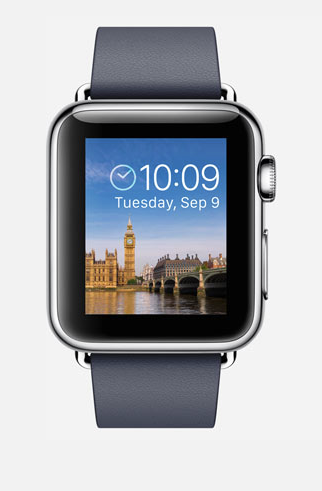
5 Useful things your Apple Watch can do


1. Locate your iphone
If your iphone and your watch connected via bluetooth or in the same wifi network. You can use your apple watch to know your iphone location. Swipe up your apple watch screen to view your Glances. Switch over to the leftmost of the glances and tap iphone icon. This action will ping your iphone and make your iphone sound a ping noise, even your iphone still in silent mode.


2. Show your last used apps
There are 2 ways to do this. First, you can manually bring your last apps to your watch screen by double-press your digital crown. Second, you can set your watch to bring up your last apps when you raise your wrist. In order to set this up, Go to Settings, Choose General<, and Select Activate on Wrist Raise. Then, Activate Last Used App


3. Capture screenshots in your watch
To capture your screen, just Press and hold the button in the lower side of your watch and click digital crown to get your screenshot.

4. Share your location with your friends 
In your watch, you can notify your friend about your location. This feature is really useful when you waiting your friend in some place and want to tell your friend that you're waiting in there. Send your location with your watch by force touch your conversation screen and choose Send Location button.

5. Activate Siri
Siri is not only available from your iphone. You can now activate Siri through your Apple watch. To do this, press and hold digital crown until Siri activated. Alternatively, you can raise your wrist and say "Hey Siri" and give the command you want.


Saturday, 29 August 2015

7 Tips how to save your iPhone battery


In every new iOS update, there will be new features and interesting graphics given to the user. In effect of this, iphone or ipad battery drained faster than before. There are several tips that you can applied to your iphone to save your battery :

1. Check for battery draining applications
The step is easy, just go to Settings > General > Usage > Battery Usage. In there, you can see which applications drain your battery by percentage. When you find some particular apps that have high percentage, try to check whether your application often do background process, or have more notifications than the other. 

2. Be aware with the location service feature in your applications
You can also check this service in your ios device setting. Go to Settings > Privacy > Location Services. Find any applications that use this feature and choose whether you want to allow the application use location service or not. 

3. Manage notifications and widget
Manage application notification setting. You can do this by adjust your app notification in Settings > Notifications and choose the application that you want to manage. 


4. Turn off auto downloads
Manage your auto downloads setting in Settings > iTunes & App Store. We recommend you turn off the Apps and Updates options because you can check the update manually when needed or sync with other apple device later. This will help you save your battery.


5. Turn off handoff feature
Basically, this feature let you work simultanously between iOS device (iOS 8 and above) and OS X Yosemite in mac device. If you don't do this often, just turn off this feature. To do this, Go to Settings > General > Handoff & Suggested Apps

6. Manage your cellular data & wifi connection
If there is available wifi in your area, Use your wifi instead your Cellular Data. When you do this, don't forget to turn off your Cellular Data. You can manage it in Settings > Cellular > Cellular Data > Off. Other network activity that also drain your battery is Personal Hotspot. So, make sure you turn off this feature off if you not use it.

7. Manage Screen Brightness
Screen brightness is one of the factor of battery efficiency. In default, the brightness setting will be set into Auto-Brightness. This is good to make your device automatically adjust your screen to make sure you get clear visibility, but sometimes can get your battery drain faster in a certain use. There is a tip to help you save your battery. If you often stay in an area with sufficient light, you can manage your screen brightness manually, Don't get to low or to bright, make sure the setting give you enough visibility for you to use your ios device. To adjust your screen brightness, Go to Settings > Display & Brightness