Showing posts with label ios 9. Show all posts

Thursday, 8 October 2015

5 Time saving tips for your iphone 6s & other iOS gadgets

With the new Apple iPhone 6s, new features being added to improve productivity. Here, we are going to share some tips that also applicable to other iOS devices : 

1. Fast reply to your notifications

Depend on the apps which have notification features, in your notification centre you can swipe down the notification message to see the apps option. Most apps have this kind of features. 

You save : 1 second


2. Use Siri to read latest message

Siri could be really useful if you want to know latest message in your iphone. Just say "Siri, read my me my text message" and it will read latest unread message from your iphone. 

You save : 2 seconds


3. Peek a website using 3d touch (for iPhone 6s)

If you receive message from your friends with certain url, you can use 3d touch to peek inside the url without switch or open safari.

You save : 0,5 second


4. Peek your emails with 3d touch (for iPhone 6s)

Usually, we opened our emails from our inbox to see what the message are and go back to our inbox to see other email. Now, in iPhone 6s, you can peek your email by using 3d touch and dismiss it directly after you see it. 

You save : 0,5 second / email


5. Take a photo to send it to your friends 

In iMessage, you can directly take a new photo or record new video and send it directly to your friends. To do this, within iMessage, long-press the camera icon to open it's menu. Swipe up to take picture or to the left to record a new video.

You save : 0,5 second


Tuesday, 6 October 2015

How to setup "Do not disturb" mode in your iOS device

If you are working or want to enjoy your "me" time, this mode can be really helpful for you. In this post, I'll show you how to go inside this mode and what else you can do.

- First, Go to Settings app.

- Choose "Do not disturb" . You'll see options like below :


- You can choose to turn on this mode manually or schedule it (for example in the night when you want go to sleep or go to a meeting)

- If you want only receive calls from certain person you can also choose "Allow Calls From" and choose your contact. 

Tuesday, 29 September 2015

5 Things you don't know that Siri can do !

In iOS 9, Siri comes with a lot of improvement and better performance. There are several new things that you can try with Siri. Here they are : 

1. Adjust your screen brightness.


Just say "Change screen brightness" and you'll get a slider to adjust your brightness. Not only brightness setting, you can also this with fonts or other things. Give it a try !

2. Find what people say on twitter.


One of many things that you can do with Siri is to know what people say on tweeter. Say "What [name of twitter user] saying?" and Siri will display their tweets in your screen.


3. Selfie with camera 


In previous post, I've shown to take selfie with your front camera. Many people don't know that you can tell Siri to take selfie. Just say "Siri, take a selfie" and your camera app will open, ready to take your photo selfie. 

4. Turn on or off your available network


With Siri, you can turn on or off your wifi, bluetooth , airplane mode and other network options. For example, you can say "Siri, turn wifi on"

5. Read your message


Did you know that Siri can read messages for you ? To do this, just say "Read latest message" and siri will check latest messages from your message app.


Saturday, 26 September 2015

How to activate or deactivate 3D touch in iphone 6s


By default, 3D touch is on iphone 6s, but there also an option to deactivate it. It may be useful for people who have problem with their motor skill. To access 3D touch, use following steps :

1. Go to Settings app

2. Choose General

3. Choose accessibility

4. Choose 3D Touch

5. Slide to the left to deactivate it.


Thursday, 24 September 2015

How to record your iPhone, iPad or iPod screen in your Mac OSX


If you are a developer or power user, you may want to capture your iOS screen. Sometimes you want to upload a preview for your apps / other media in your Apple gadget. Actually, there is a simple way to do this within your Mac.

1. Connect your iphone to your mac using lightning cable.

2. Open QuickTime in your mac.

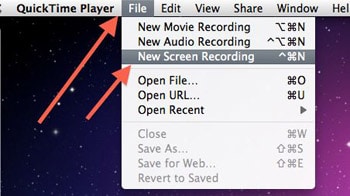
3. In QuickTime, Click File, New Recording to start record your iOS screen


Wednesday, 23 September 2015

How to speed up your old iphone when using iOS 9

A lot of iPhone users upgrader their device to use iOS 9. The problem is many of old iphone seems to be exhausted when use iOS 9. Here are several tips to improve your iphone speed in iOS 9 (I recommend it for iPhone 5 and below to apply this) :

1. Reduce Motion


One of the improvement in iOS 9 is a lot of new animation effects applied within the OS. There are a lot of stunning dynamic effects available when you use iOS 9. Even it looks beautiful, it also use a lot of your iphone resources. You may gain more speed by activating "Reduce Motion" feature. Go to Settings -> General -> Accessibility -> Reduce Motion.

2. Siri


The second tips which you can apply is to deactivate "Siri suggestions" in your spotlight. In iOS 9, Siri also got a lot of improvements, but this also effect in your iphone resources. For that reason, we suggest you to do this tips. Go to Settings -> General -> Spotlight Search and then set the feature Off.

3. Transparency 


Transparency in iOS 9 is also one of the feature that eat a lot of resources. Turn this Off by going to Settings -> General -> Accessibility -> Increase Contrast.

4. Background App refresh


This feature already available in previous iOS 8 version. As you know, this feature work in background to refresh your data in order to get frequent update for your apps. Turn this off may save more resources for your phone. Go to Setttings -> General -> Background App Refresh. 

Tuesday, 22 September 2015

How to update Apple Watch to Watch OS 2


Today, Apple Watch OS 2.0 has been released. If you using your apple watch, you can get update to the latest release. Here is how to upgrade your watch : 

1. First, before you upgrade your watch, make sure your iPhone already upgraded to iOS 9. You can check your iOS version by going to Settings -> General -> Software update. If you don't have iOS 9 in your iphone, your Watch will notify you that the OS version is up-to-date, even you are in version 1.1

2. When you have iOS 9 in your iphone, go to your Apple watch app in your iphone.

3. Go to General -> Software update -> Download and Install


As you see, the file size of the update is approximately 515 MB. So, make sure you are on wifi or fast internet connection. Connect your watch with your charger and confirm the installation.

Sunday, 20 September 2015

How to temporarily disable Safari content blockers in iOS 9


If you use iOS 9 right now, you may notice that the new safari embedded with new content blocker feature from Apple. Sometimes, when you use safari with this feature, it may go to far by blocking not only ads but also the real content that you want to display. There is a simple way to avoid this when you visit a page. Here are the steps :

1. Open your safari.

2. Browse the page you want to display.

3. After you visit the page, go to the URL bar on top of the screen.

4. Next, tap and hold the refresh button. 2 Options will appear.

5. Choose "Reload without content blockers"


6. The page will reload again with content blockers.

One thing you must know that this tricks only for the page you display, when you do regular refresh or browse other page or sites, the content blocker become active again. 

Thursday, 17 September 2015

How to migrate from Android to iOS easily


Recently, Apple released an android app to help android user migrate to iOS. It's called Move to iOS. With this tool, you can migrate your contacts, calendar, bookmarks, email accounts, messages, photos to iPhone, iPad or iPod Touch. This app can be installed to Android 4.0 and above.


What interesting about this tool is that you don't need backup your android phone to your cloud storage, because the tool will synchronize it through wifi between your android and iPhone / iPad / iPod touch.


When setting your new iOS device, user can choose Move data from android option in Apps & data setting. After you've done this, open Move to iOS app in your android and wait for 10 codes that will appear in your iPhone screen. Enter that codes to your android in order to authenticate both devices. Next you can choose what data you want to migrate. After the migration data, double check it and you are good to go !


Friday, 11 September 2015

How to change BBM ringtone in your iPhone


Did you know that you can change your default BBM ringtone in your iphone ? If you want to change your BBM ringtone, do the following steps :

1. Download iFile app
2. Next, Open the app and go to folder var/Mobile/Applications/BBM.
3. Go to folder BBM.app
4. Then, find file with the name "sound_rim_im.wav"
5. Next, you can change that file with your favourite song or ringtone, and give the same name.
6. Done. Enjoy your new ringtone!

Thursday, 10 September 2015

4 Ways to improve your iphone speed


1. Reboot / Restart
One of the most effective way to improve your iphone speed is to reboot your iphone once in a while. Do this when you have time or when you not doing your activity with your iphone. 

2. Clear Cache 
In iOS, Safari is one of the most effective app that apple ever created for their iphone product. It also effective in cleaning unused data inside your iphone. However, Clean this cache data manually can also improve your iphone speed. Here is how to do it : 

- Open Settings app
- Tap on Safari
- Scroll down until you find Advanced option
- Tap on Website data and choose Remove all website data

3. Delete apps that you don't use anymore
Other thing which you can do to speed up your iphone is delete apps that you not use anymore. This can free more space from your iphone. To do this just tap and hold the apps you want to delete. Tap cross button to delete the apps

4. Turn off unused feature
Turn off some feature can dramatically improve your iphone. However, you can choose which feature from apps that you want to disabled. This is often come from apps through Background App Refresh. To turn this off, follow the steps below : 

- Open Settings app
- Tap background app refresh
- choose which app you want to disable.

Wednesday, 9 September 2015

How to trim video in your iphone

Your iphone has basic capability to edit your video, one of them is to cut video you captured. Here's how you can do it : 

1. First, Open your Photos app in your iphone
2. Choose the video you want to edit
3. In the top, drag the left and right of the arrow to define the time frame of your video you want to keep. 


4. Tap on trim button 
5. Then, you can choose between "Trim Original" or "Save as New Clip"


Monday, 7 September 2015

How to protect yourself from malicious jailbreak tweaks


If you planned to jailbreak your iPhone, be careful about getting tweaks and extensions. recently, more than 200,000 iCloud accounts hacked by malicious tweak that target iphone users who jailbreak their device. Not only your iCloud account, your iMessages, email, photos and video can be read by the attacker. 


For users who already jailbreak their iphone, here are few thing that you can do to add extra security layers to your device : 

- Don't add anonymous third party repos to your cydia
- Install tweaks outside cydia in no case
- non pirated apps and tweaks
- Turn on 2Factor authentication


5 iPhone hacks you may not know !

1. Check tweet without opening twitter app
Do you know you can check your favourite user tweet without opening twitter app? You can ask Siri by saying "Whats [twitter handle] saying " for example "What's paul john saying ?"


2. Alternative undo typing
You can undo your typing by shaking your iphone side to side. Try this out!

Image result for undo typing iphone

3. Dark theme for your iphone
You can change your iphone menu color by changing it. To do this, go to Settings > General > Accessibility and select Turn on invert colors


4. Type numbers without changing your keyboard to numerical view.
This can be done by tap and hold "123" button and slide to number you want to type.


5. Show timestamp in Messages 
Just Slide left in your conversation screen to see the timestamp. The timestamp will show in the right of your screen

Sunday, 6 September 2015

3 Things you can do with your iphone camera

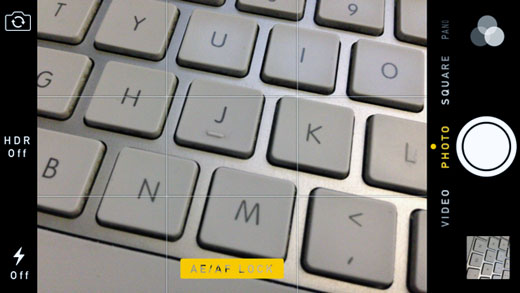
1. Take Photos with locked auto focus and exposure.
Open your camera app, tap and hold your screen until yellow square appear and blinks twice. When this happen, you'll notice there is text "AE/AF Lock" appeared in the bottom. It means that you've already locked focus and the exposure.


2. Burst Shots
Do you know you can take burst shots with your iphone ? To do this, Simply open your camera app, when you want to take photos, just press and hold the capture button. It will go to burst mode automatically.


3. An alternative to take a photo
With your photo, you can take a photo in an alternative way. This is useful to take a candid photo. Prepare your iphone by open your camera app. You don't need to take picture by pressing the capture button within the app, just simply use volume up or volume down button to take your photo.


Friday, 4 September 2015

5 Hidden iPhone 6 and 6s tricks

1. Reachability feature

Reachability feature help you to reach top of their iphone screen with their thumb while holding your iphone single-handedly. Just double touch your home button to make your screen slide half down near your thumb.


2. Smooth Video Recording

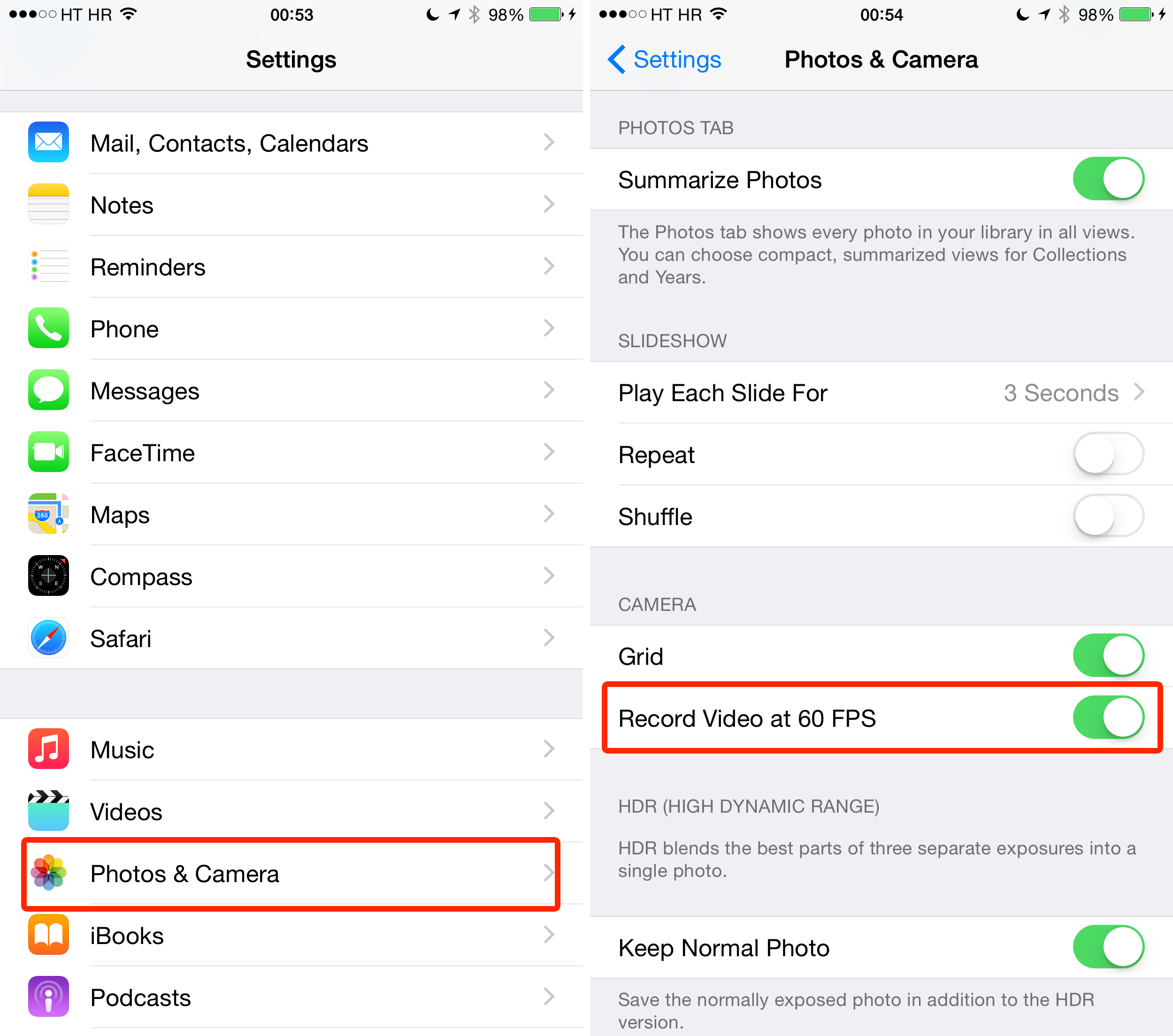
With your iPhone 6s and 6, you can record smoother video by enabling 60 fps (frame per second) capability. To do this, just go to Settings - Photos & Camera - Record video at 60 fps.


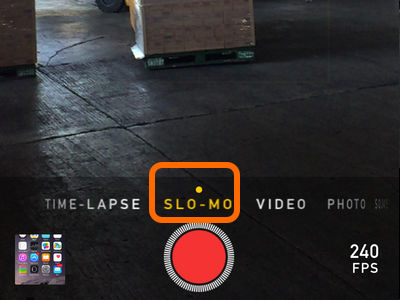
3. How to record slow motion video

Start with iPhone 6, you can now capture slow motion video using your iphone. To Enable this, open your camera app and choose SLO-MO from horizontal sliding menu at the bottom of your screen.


4. Capture photo using volume keys

You can capture photos using volume keys. Just open your camera app and press the volume key to snap a photo. Great for candid photo !


5. How to define a word 

When you using safari to read an article or reading email using mail apps, you can look for word definition. In order to do this, select the word by pressing and hold the word, an option will appear, choose define to search for it's meaning in dictionary.


Thursday, 3 September 2015

How to disconnect your Bluetooth accessories in iOS 9 without forgetting them


In the recent iOS 9, Apple provide new feature in disconnecting your Bluetooth accessories. In previous version of iOS, you simply disconnect your Bluetooth accessories with the option “Forget this device” which also prevent automatic pairing in the future when you try to use it again.

For the iOS 9, there is new option in your Bluetooth devices. To view this option, Goto Settings, Choose Bluetooth and tap “i” button in the circle. 


You will see that you can choose between “Disconnect” or “Forget this device”. When you choose disconnect option, you can keep your Bluetooth accessories in the list of stored wireless devices.


This features really helpful for users who often switch between devices when using Bluetooth accessories. So, give it a try !

Wednesday, 2 September 2015

How to add emergency contact in your iphone


Emergeny contact is important when something happen to you. You can add it to your iphone as reference when needed. To do this, open Health app and do the following :

1. Open your medical ID and tap edit icon in top right corner of your screen.
2. Find and tap "add emergency contact" option and the contact app will be shown.
3. Choose the contact that you want to add and confirm it when you back to the health app