Showing posts with label safari. Show all posts

Tuesday, 12 January 2016

How to show url address from a link in Safari

Safari in Mac

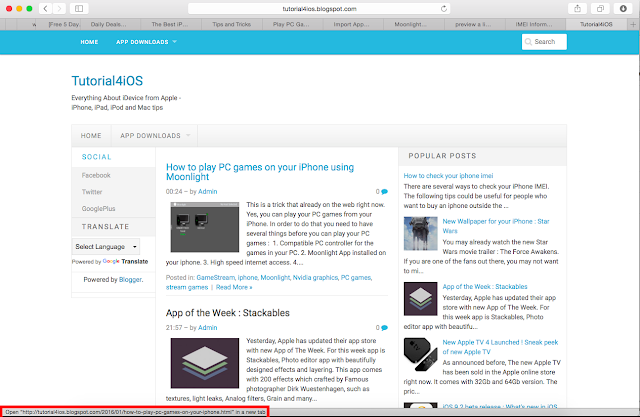
If you use safari, you may notice that safari didn't show url when you hover a link. There is a way to show it in safari. In order to do this, follow this step :

- Launch safari in your mac.
- Click View Menu.
- Click on Show Status Bar.
- Done.

Right now, every time you hover a link when you browse using safari, you can peek the url in the bottom of the safari window


Safari in iPhone

In your iPhone, you can also see a link without setting anything. Here is how you can preview a link before you go through the link:

- Launch safari from your iPhone and go to a webpage with a link.

- When you find a link, tap and hold for at least 2 seconds until an action menu show up

- In this action menu, you can preview the link before you decide to open it. 


Sunday, 20 September 2015

How to temporarily disable Safari content blockers in iOS 9


If you use iOS 9 right now, you may notice that the new safari embedded with new content blocker feature from Apple. Sometimes, when you use safari with this feature, it may go to far by blocking not only ads but also the real content that you want to display. There is a simple way to avoid this when you visit a page. Here are the steps :

1. Open your safari.

2. Browse the page you want to display.

3. After you visit the page, go to the URL bar on top of the screen.

4. Next, tap and hold the refresh button. 2 Options will appear.

5. Choose "Reload without content blockers"


6. The page will reload again with content blockers.

One thing you must know that this tricks only for the page you display, when you do regular refresh or browse other page or sites, the content blocker become active again. 

Monday, 14 September 2015

5 Tips to secure your iphone and iPad from hackers


1. Enable PIN or Fingerprint security
This is the most basic security setting that you must enable in order to add first layer security to your iphone or ipad. Just go into settings -> general tab and choose "Touch ID & passcode lock".

2. Create more complex passcode
In creating your passcode, you can use more complex passphrase than 4 digit passcode. To do this go to settings , then "Touch ID & Passcode" and turn "Simple Passcode" off. you can use upper and lower letters, numbers or symbol.

3. Self-destroy
If you afraid your sensitive data leaked, iphone can offer you to erase your data. You can set your iphone to erase your data after 10 wrong PIN entry. Under the same page on settings you can enable "erase data". This is also apply to fingerprint authentication. If your iphone don't recognize the correct fingerprint in 3 times, then it will switch to PIN entry.

4. Privacy settings 
One more setting that you can set to give restriction to your iphone in order to improve your security. You can set permission of each apps installed in your iphone. In order to do this, Go into your settings app and then the "privacy" tab. Set each apps in that setting.

5. Disable autofill
An important setting that you may also consider in order to prevent your sensitive data leaked. Generally, safari will offer auto complete in filling web forms, including name, username, credit card data. This can be a hole for hackers to get in. To turn it off, go to settings, then general and "Passwords & AutoFill".